
Get started with QHuman
Install QHuman, record your first macro, and replay it, all in about five minutes.
Jump to a moment in the video: Install · Record your first macro · Clean up the recording · Save it · Loop it · Fire it from a hotkey · Where your macros live · Detection preview
QHuman records your mouse and keyboard input into macros, the saved automations you can replay any time. Each macro can hold multiple sub-sequences, and gets its own playback settings, hotkey, and optional detection trigger. You'll record one and play it back below.
-
Install QHuman from the Microsoft Store QHuman is free to download. Open the Store listing and click Get. Works on Windows 10 and 11.
-
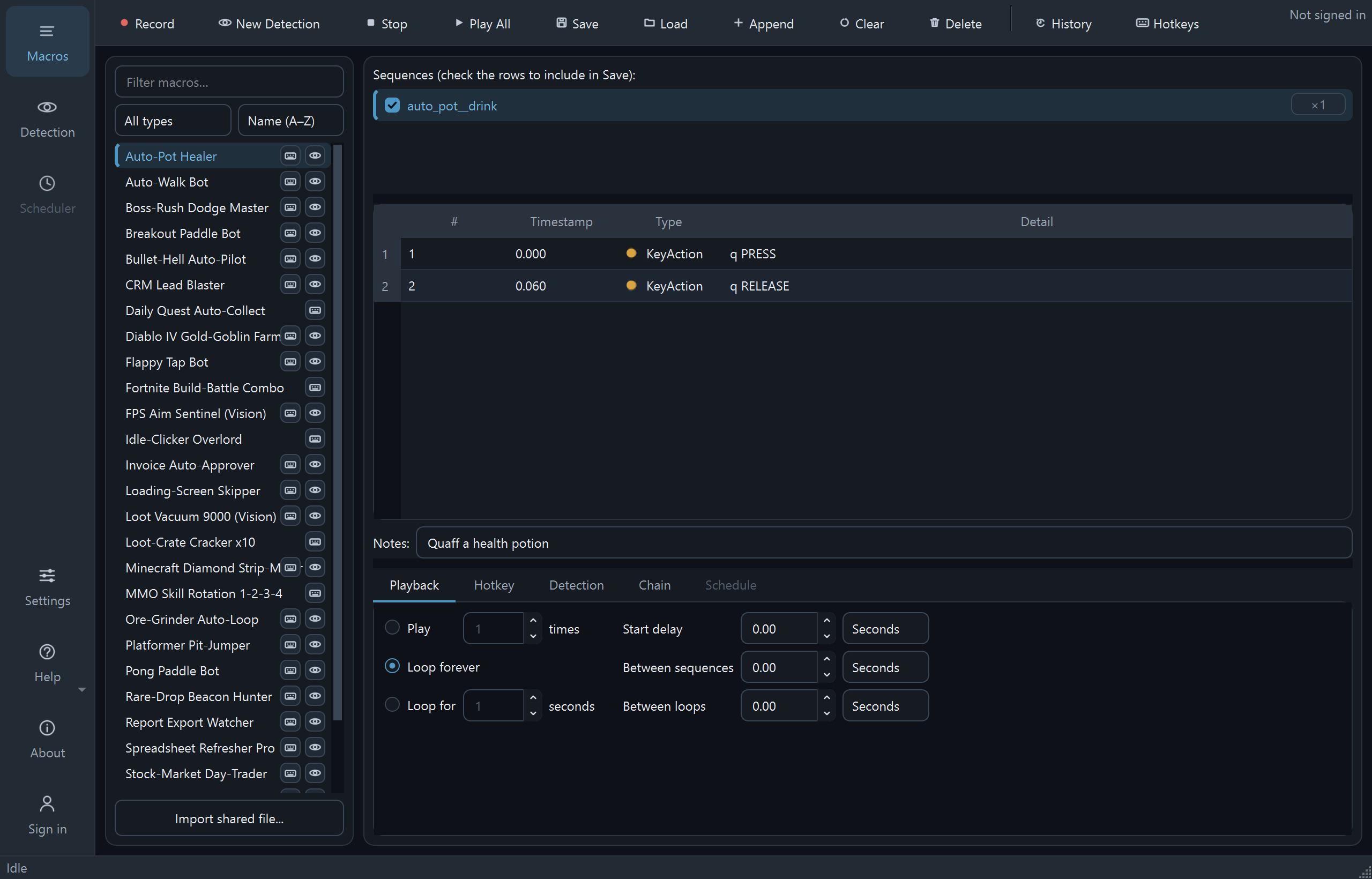
Open QHuman Launch the app. The left pane lists your saved macros (empty on first run). The right pane is the editor: a sequences list, an action table, a notes field, and a row of tabs for fine-tuning later. On the top toolbar, the four you need first are Record, Stop, Play All, and Save.
-
Click Record Hit the Record button on the toolbar, or press Ctrl+F9 from anywhere. QHuman starts capturing your clicks and keystrokes.
-
Stop the recording Click Stop, or press Ctrl+Alt+S (the default Stop hotkey). Your recording becomes a new sub-sequence in the right-pane Sequences list. Each Record/Stop cycle appends another one.
-
Save it as a macro Click Save, or press Ctrl+S. The macro now appears in the left list and persists across launches.
-
Play it back Click Play All, or press Ctrl+F10. To bail out: click Stop, press Ctrl+Alt+S, or slam your mouse cursor into any screen corner. The fail-safe is on by default and always works.
That's it. You have a working macro. The next guides cover building multi-sequence macros, customizing playback (loops, delays), binding a hotkey to a macro, and triggering macros from on-screen detection.
Stuck on a step?
Ask in the Discord, post on r/QHuman, or email support. Happy to help.