
Settings tour
A tour of QHuman's settings: what each toggle does, and why you'd flip it.
Video walkthrough on the way
This topic's video is in production. The written guide below covers everything for now.
Most of QHuman is one click away from a default that works. This page is for when you want to change one.
Tabs at a glance
Seven tabs on a left rail: General (language, splash, crash reports), Hotkeys (global Record/Play/Stop, covered in Custom hotkeys), Recording (what gets captured), Playback (how macros replay, covered in Playback options), General Override (humanization defaults: random pauses, click jitter, glide duration), Detection (OCR preprocessing and captured-image cleanup), and Backup & Share (export or import your whole library as one file).
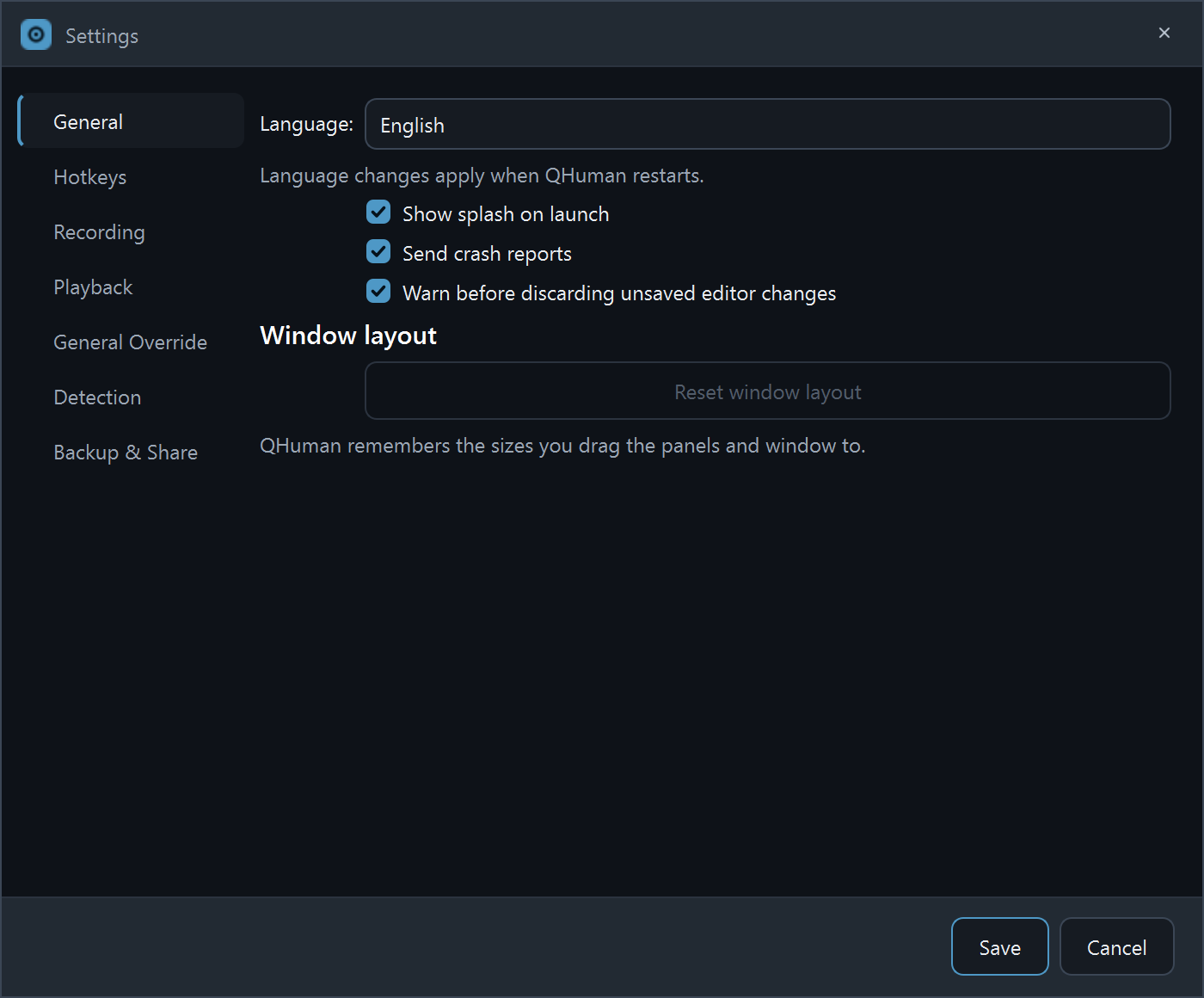
General: language, splash, crash reports
Pick the app language, toggle the welcome splash on launch, and opt in or out of anonymous crash reports. The "warn before discarding unsaved changes" toggle lives here too.
Recording sources: clicks, movement, scroll, keys
Four checkboxes. Clicks and movement are on by default. Scroll and keys are off by default; turn them on for the specific macros that need them. See Record keyboard input and Record mouse scroll.
Mouse-movement deadzone
A pixel threshold that filters out tiny jitters during recording. Bigger deadzone = smoother but coarser captured paths. Default 1.0 is fine for most cases; raise it if your recordings look noisy.
Ignore safe zone (movements vs clicks)
QHuman has a configurable "safe zone", a screen region where input is excluded from recording. Two toggles let you ignore the safe zone for movements only, clicks only, or both. Useful when you want to record gestures inside the safe zone but block clicks, or vice versa.
Enable / disable the fail-safe
The cursor-to-corner abort can be turned off in Playback if a macro needs the cursor to legitimately reach corners. Strongly recommended to leave on for everything else.
Reset window layout
Restores the default pane proportions and toolbar positions if you've dragged things around and want a fresh start.
Open Settings fast
Window-scoped shortcut: Ctrl, opens Settings while QHuman is focused. Faster than clicking through the nav rail.
Stuck on a step?
Ask in the Discord, post on r/QHuman, or email support. Happy to help.