
Playback options
Loops, delays, speed, movement style, and the fail-safe that always works.
Video walkthrough on the way
This topic's video is in production. The written guide below covers everything for now.
Recording is half the story; how a macro replays is the other half. QHuman has fine controls for repetition, timing, and safety.
Play once vs Loop forever vs Loop for N seconds
Three radios in the right-pane Playback tab. Play repeats the macro a fixed number of times; Loop forever runs until you hit Stop; Loop for runs for a duration you set in seconds.
Set a repeat count
With the Play radio selected, type the number of repeats into the times spinner. Combined with delays, this is how you set up "do this exactly five times."
Start delay
A pause before the macro starts. Useful when you trigger via hotkey but need a beat to switch windows or focus the target app first.
Between-sequence and between-loop delays
Two separate spacers. Between sequences inserts a pause between each sub-sequence in a single play-through; Between loops inserts a pause between full-macro repeats. Tune them to match the real app's responsiveness.
Fail-safe: cursor-to-corner abort
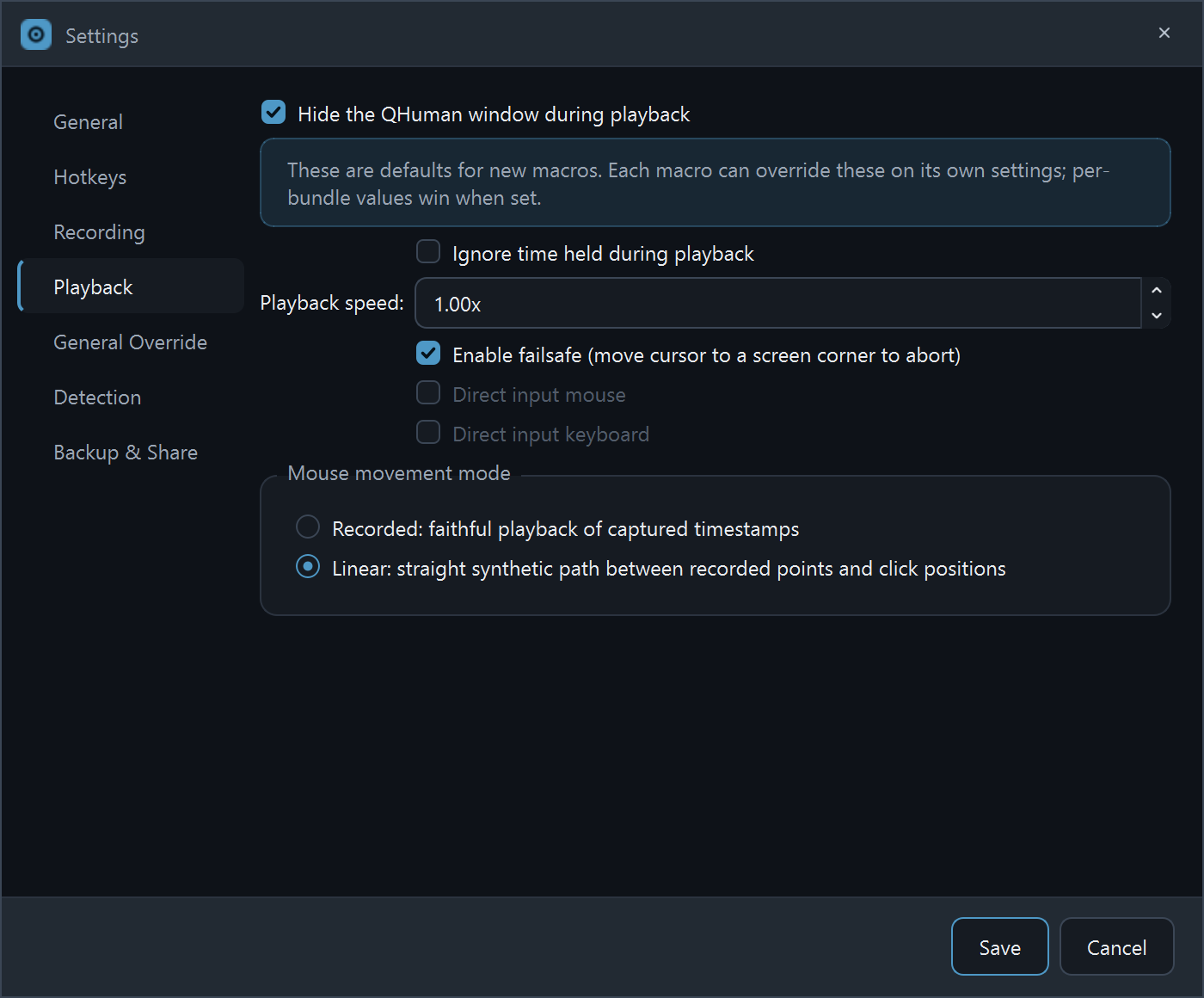
The always-on safety net. Slam your mouse cursor into any screen corner (top, bottom, left, right) and playback stops dead. On by default; you can disable it in Settings → Playback, but don't.
Stop playback mid-run
Press the global Stop hotkey (default Ctrl+Alt+S) or click the Stop button in the floating playback indicator. Recording and playback share the same Stop key.
Playback speed multiplier
The Playback speed slider in Settings → Playback scales everything (moves, delays, key holds) by a single multiplier. Bigger than 1 makes the macro faster; smaller, slower.
Linear vs realtime mouse movement
Two modes for how the cursor travels between clicks. Linear teleports between click positions (or glides if you turn that on). Realtime interpolates the path you originally recorded. Linear is faster and consistent; realtime is human-shaped and harder for apps to detect as a macro.
Ignore recorded timing
Turn on Ignore time held in Settings → Playback to strip your recorded pauses. The macro then plays the actions back-to-back at maximum pace. Great for fast click loops in idle games.
Glide to the first click
The opening cursor jump can feel jarring in screen recordings. Glide to first click in Settings → Playback smoothly slides the cursor from its current position to the macro's first click, instead of teleporting.
Stuck on a step?
Ask in the Discord, post on r/QHuman, or email support. Happy to help.