
Saving and organizing macros
Save, load, rename, append, recover: the lifecycle of a QHuman macro.
Video walkthrough on the way
This topic's video is in production. The written guide below covers everything for now.
The left list is your macro library. This guide covers everything that happens to a macro between recording and replaying it later.
Save your first macro
Click Save or press Ctrl+S. Name the macro in the dialog that appears and hit OK. It lands in the left list and persists between launches. Only the checked sub-sequences are written into the bundle.
Load and re-edit a saved macro
Click a macro in the left list and hit Load. It replaces whatever's in the editor with the saved macro's sub-sequences and settings. Edit anything, then Save again to overwrite.
Rename a macro
Right-click a macro in the left list and pick Rename…. Names must be unique; duplicates are rejected with a clear error.
Append a saved macro into the editor
Use Append when you want another macro's sub-sequences added to your current editor, non-destructively. Existing rows stay; the appended ones are added at the end. Useful for stitching together pieces you've recorded separately.
Clear the editor without losing saves
Clear empties the editor back to a fresh state. It doesn't touch your saved macros; those stay in the left list. If you have unsaved changes, you'll be asked to confirm.
Delete a macro
Delete with a macro focused in the left list removes it from disk after a confirmation. It's recoverable from History; see the next section.
Recover from History
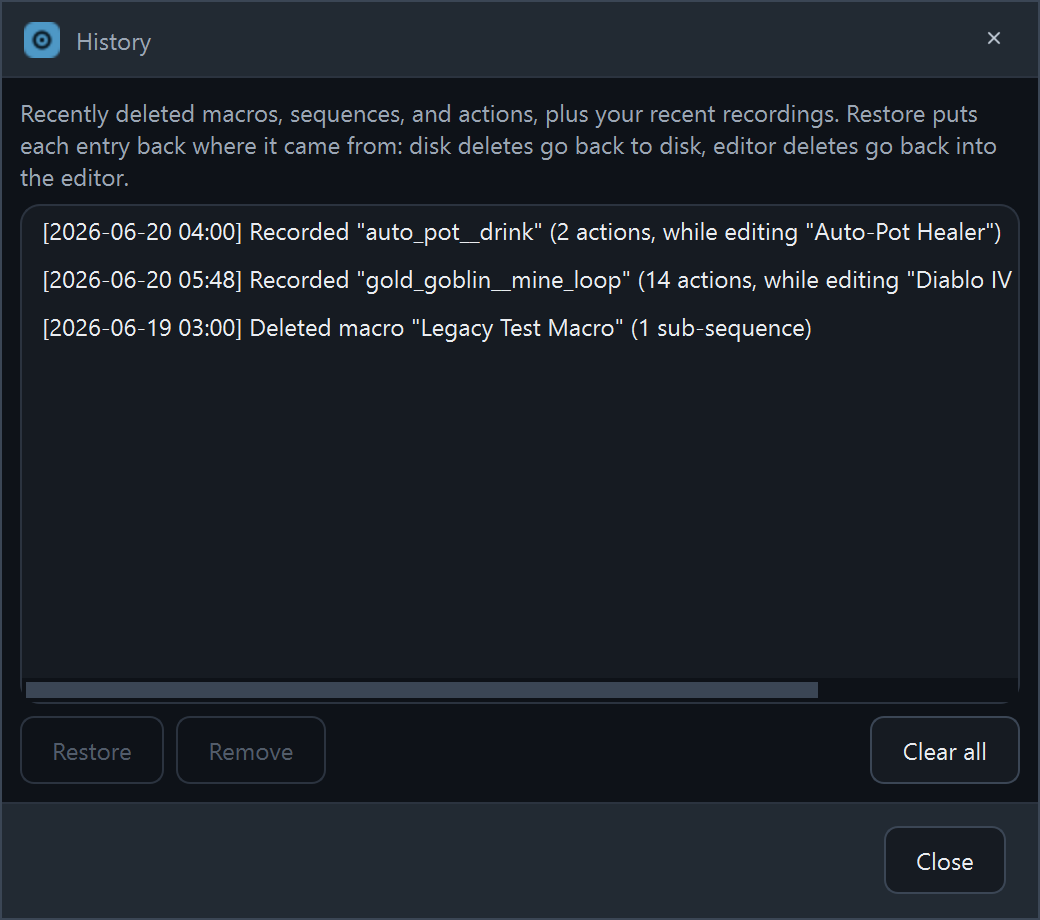
Hit the History button on the toolbar. The dialog lists recently deleted macros and recordings you never saved at all. Pick one and click Restore. It lands back in the editor or the left list.
Filter and sort the macro list
The left list has a filter box and a type filter: All, Has hotkey, Has detection, Click-only, Chained. Sort by Name (A–Z), Name (Z–A), or Type. Combined, they make a large library easy to navigate.
Stuck on a step?
Ask in the Discord, post on r/QHuman, or email support. Happy to help.